
There may be times when you want a shortcut link to a particular website saved to your iPad desktop, but some browsers do not have the option to save to desktop. See below for the steps to add a website link to your iPad desktop. This will work on the iPhone as well.

Safari is the default web browser that comes with the iPhone and iPad; it is Apple’s browser. However, many people prefer to use a different browser of their own preference. My favorite is the Google browser, but I also use Chrome and have used DuckDuckGo in the past as well. There are a number of web browsers available from the Apple Store such as, Google Chrome, Microsoft Edge, Brave, Firefox, DuckDuckGo, Opera, Google, etc. I have not tested all browsers but the ones that I do use do not have the option to ‘Add to Homescreen’. But the Apple Default Web Browser, Safari does have this option.
- From your iPad, search your app library for Safari or ask Siri to open Safari for you.
- In the URL box, type in http://www.BlogsbyBG.com and hit enter or Go.
- At the top bar of the Safari window to the right of the url box, there is a share icon. Tap this icon. It looks like a square with an arrow pointing upward.
- Scroll down a bit until you see the option to “Add to Home Screen”. Tap this option.
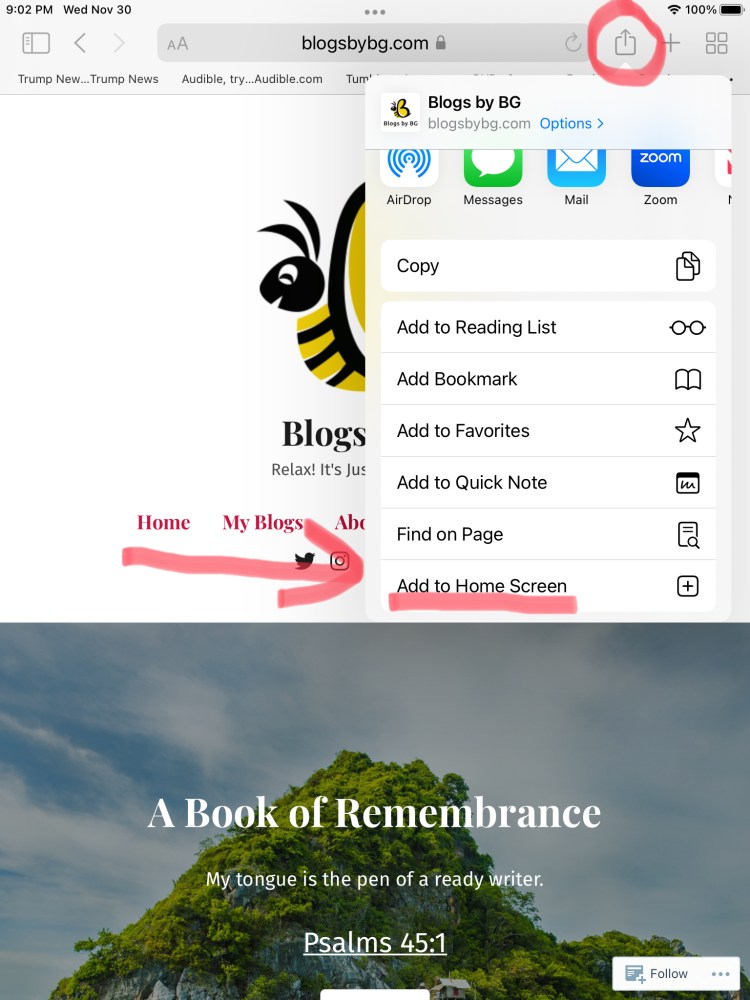
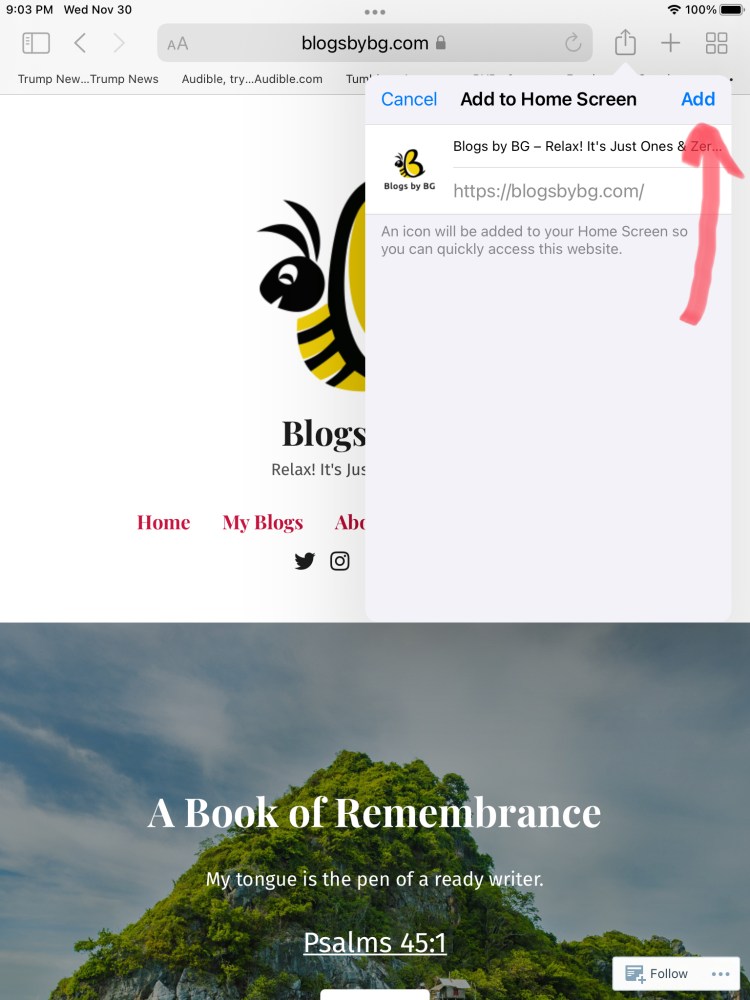
5. The Add to Home Screen popup box will display, showing the icon and the name of the website that will be added to your iPad home screen.
6. Tap ADD in the upper right corner of that popup box.
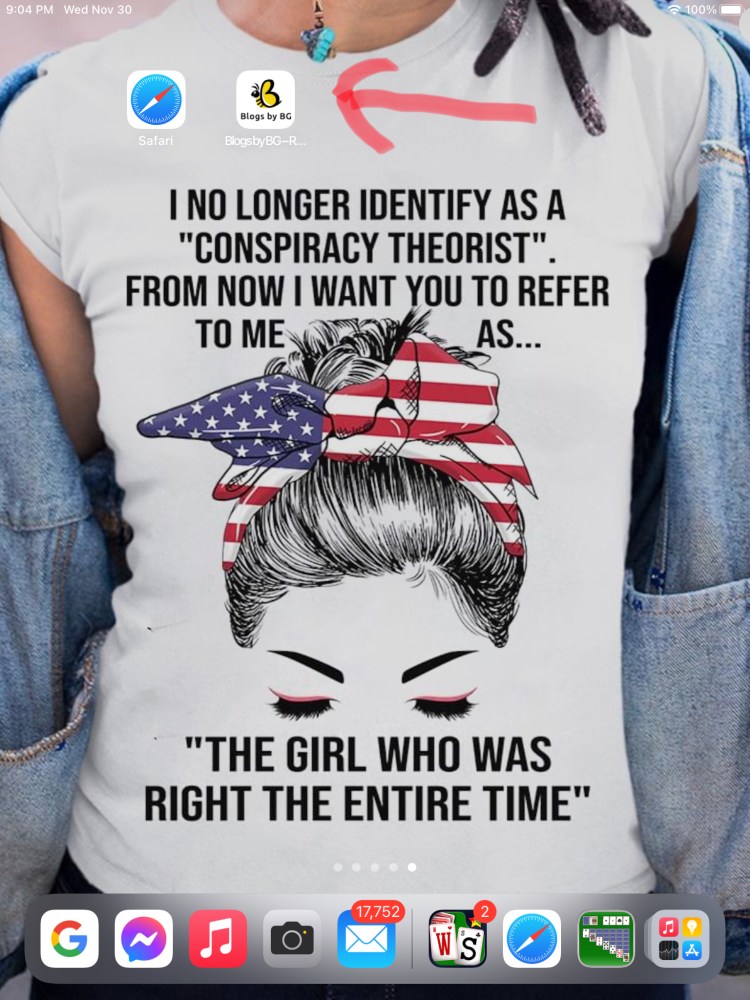
7. The website link will be placed on your iPad desktop.
8. If you want the icon on a different screen, then you can move it by editing the Home Screen.
 Blogs by BG